Make an Army Red VS Blue Controls Guide
Every input for path picking, upgrades, and Red vs Blue combat in the beta.
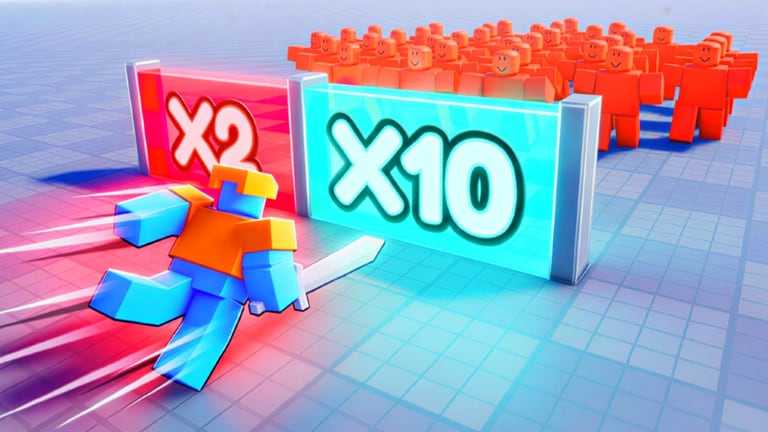
Make an Army Red VS Blue uses standard Roblox movement for its runner segments: you auto-run forward and steer at splits to hit the correct gates. Mis-timed inputs are the fastest way to lose a multiplied army before arena combat. This guide lists default controls on PC, mobile, and controller, plus settings that help in five-player online sessions during UH Games Offical’s beta.
Roblox allows experiences to override defaults slightly—if a patch changes bindings, compare the in-game help panel with this page and report differences on /updates/.
PC keyboard and mouse
- W / A / S / D or Arrow keys: Steer left and right at path splits; minor forward/back adjustments if the lane allows strafing.
- Space: Jump when enabled on obstacle segments—rare in gate-focused runs but used in some beta maps.
- Left Shift: Sprint or dash if the developer bound an ability—check HUD prompts before relying on it.
- Mouse: Click UI buttons for shop purchases, egg claims from Free Egg Tier 1, and badge popups.
- Esc: Open Roblox menu—avoid mid-split unless stationary.
Gate tip: pre-hold the direction one beat before the fork visual aligns. Latency is lower on wired connections; wireless keyboards can add a few milliseconds that matter at x3 gates documented in Gates and Paths.
Mobile touch
- Virtual thumbstick (left): Steer between lanes; drag magnitude controls how sharply you commit.
- Jump button (right): Jumps when the stage includes vertical gaps.
- Tap UI: Shop buys, hatch eggs, accept co-op invites.
- Pinch / rotate: Camera only—does not affect run direction unless you lose stick focus.
Mobile players suffer the most mis-clicks at gates. Increase Roblox joystick dead zone slightly in settings if you drift lanes. Play on stable Wi-Fi; packet loss feels like input lag during Red vs Blue clashes.
Controller (Xbox / PlayStation style)
- Left stick: Steer left/right at splits.
- A / Cross: Confirm menus and purchases.
- B / Circle: Back out of shop panels—do not spam during splits or you may close critical buys from Better Army Guide.
- Shoulder buttons: Camera or emotes depending on Roblox defaults—not combat abilities unless shown on HUD.
Controllers excel at smooth steering for tight gate chains; use them for practice drills on How to Play opening routes.
Menus versus movement
Upgrade shops pause forward motion in most Simulation runners, but some beta builds keep auto-run active. Read the HUD: if your character still moves, tap steer before selecting armor tiers. Co-op teammates should call “shop stop” when everyone needs to buy.
Currency screens from Coins and Gems use the same confirm buttons—double-check gem purchases because refunds are uncommon in beta economies.
Camera
Third-person camera follows your avatar. Rotate camera for visibility at wide splits; it does not change hitbox direction into gates. Reset camera behind the character before high-speed segments so left/right inputs match screen space.
Multiplayer communication
Roblox text chat and voice (where age settings allow) carry gate callouts. Bind nothing special—use platform chat. Five-player lobbies get chaotic; short compass calls beat long sentences while steering.
Accessibility
Roblox supports shift lock and increased UI scale system-wide. Larger UI helps mobile shop confirmation. Color-blind players should rely on gate numbers, not only red/blue team colors, when picking lanes—team color does not always match gate reward color.
Troubleshooting input issues
- Drifting left: Lower stick dead zone or clean mobile screen.
- No jump: Segment may be flat-only—jump disabled intentionally.
- Purchases not registering: Lag spike—reopen shop panel once.
- Controller not detected: Reconnect before joining a run; Roblox sometimes locks device on first spawn.
Rejoin a server after changing Roblox input settings mid-session.
Practice routine
- Empty lobby: steer through first five splits without shop menus.
- Add shop stop: open armor UI and exit without buying—confirm run resumes.
- Co-op: one player calls direction while others execute—measure miss rate.
- Boss portal: verify everyone can interact with the same prompt in Beat Bosses.
More guides
- How to Play — when inputs matter in each phase.
- Gates and Paths — split timing and lane reads.
- Better Army Guide — shop button flow.
- Coins and Gems — purchase confirmations.
- Free Egg Tier 1 — claim UI on each platform.
- Beat Bosses — arena targeting notes.
Frequently Asked Questions
Quick answers players ask before every match.
How do I steer at gates on PC?
Use WASD or arrow keys to move left or right into the gate lane before you cross the threshold.
Does the game support controller?
Yes through default Roblox controller support. Left stick steers; face buttons confirm menus.
Why do I miss gates on mobile?
Start steering early and reduce stick dead zone drift. Lag also causes late commits—use stable network.
Can I rebind keys?
Use Roblox client settings for global bindings. Experience-specific rebinds appear only if the developer adds them.
Do controls change between Red and Blue?
No. Both teams use the same input scheme; only cosmetics and match side differ.